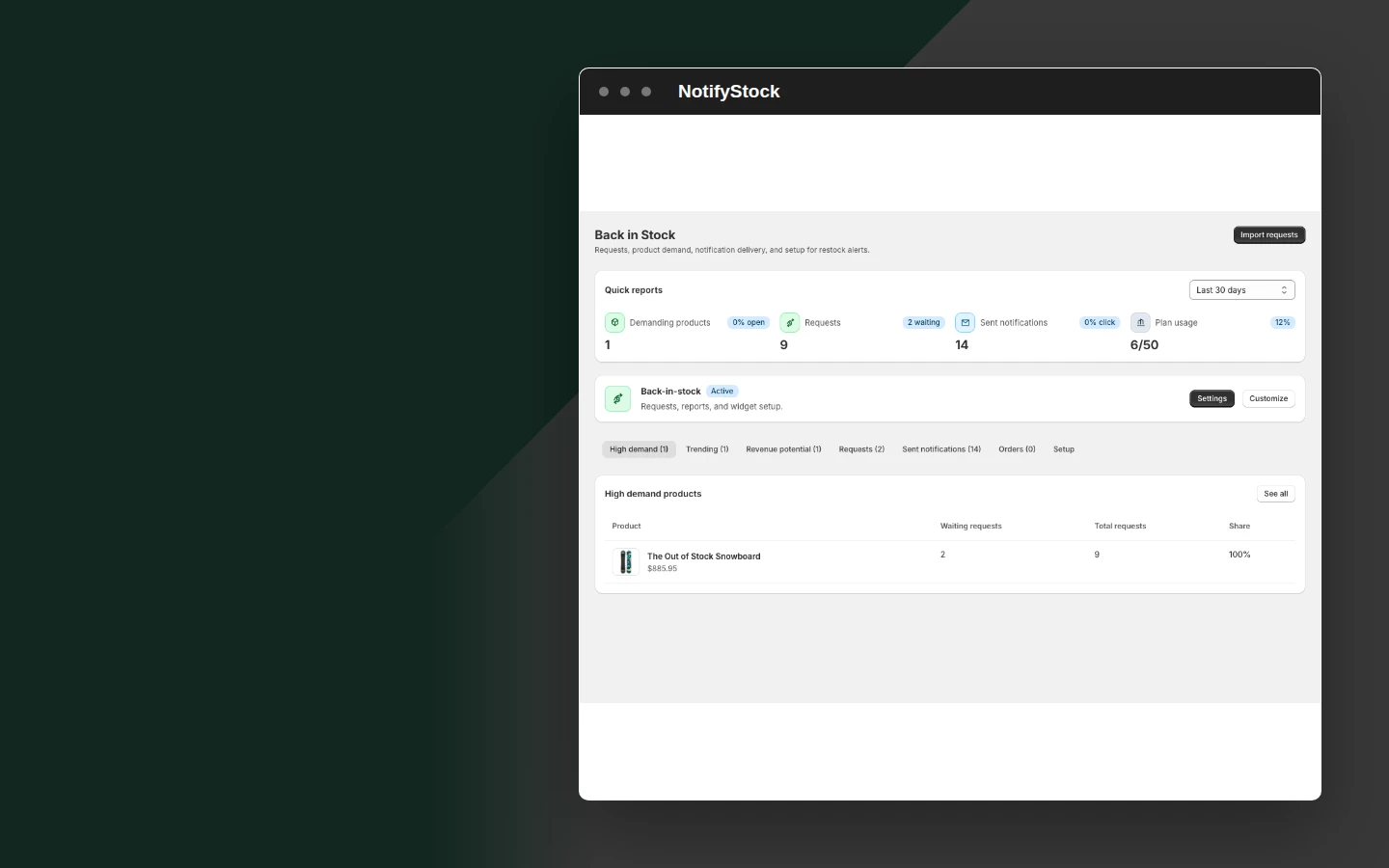
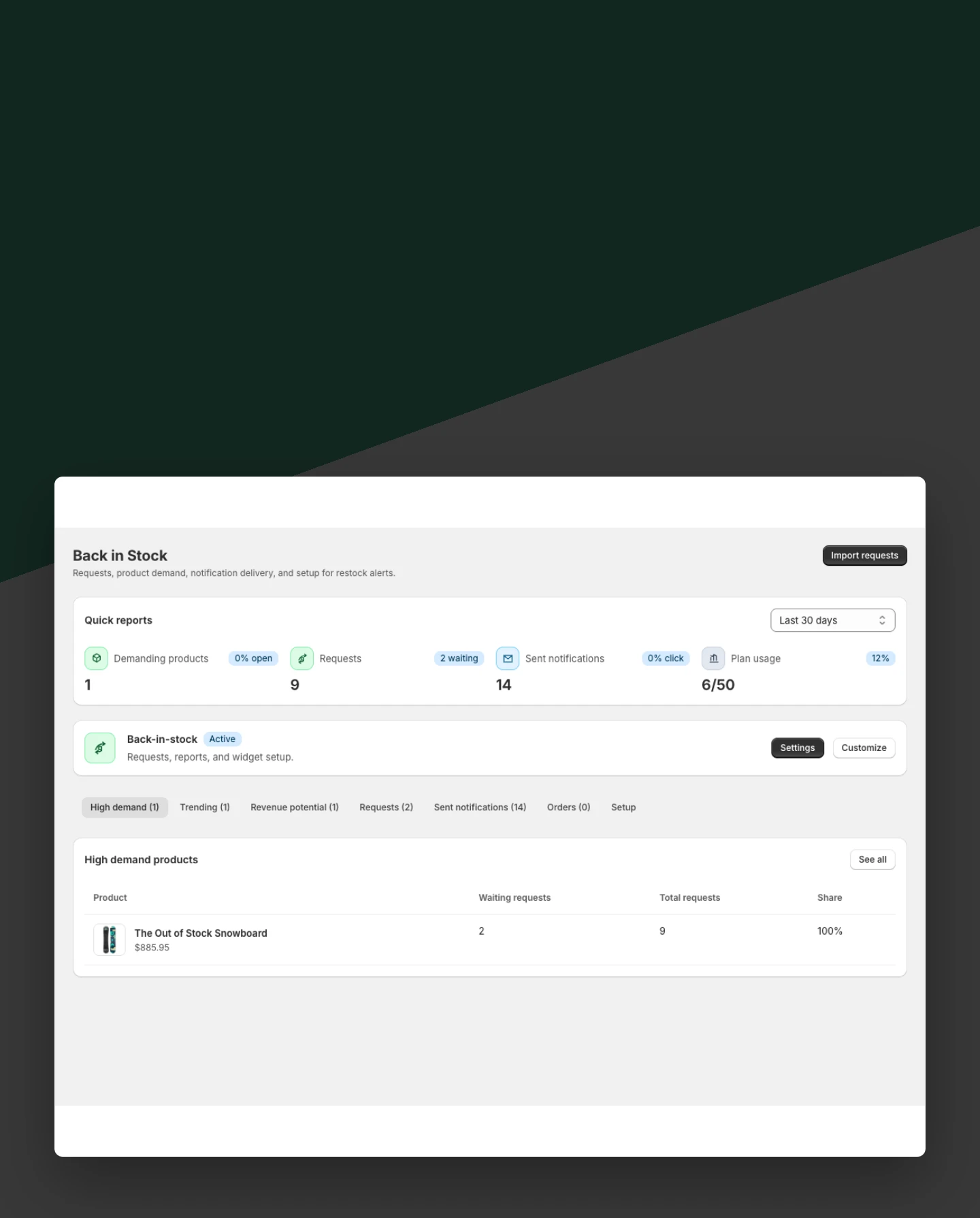
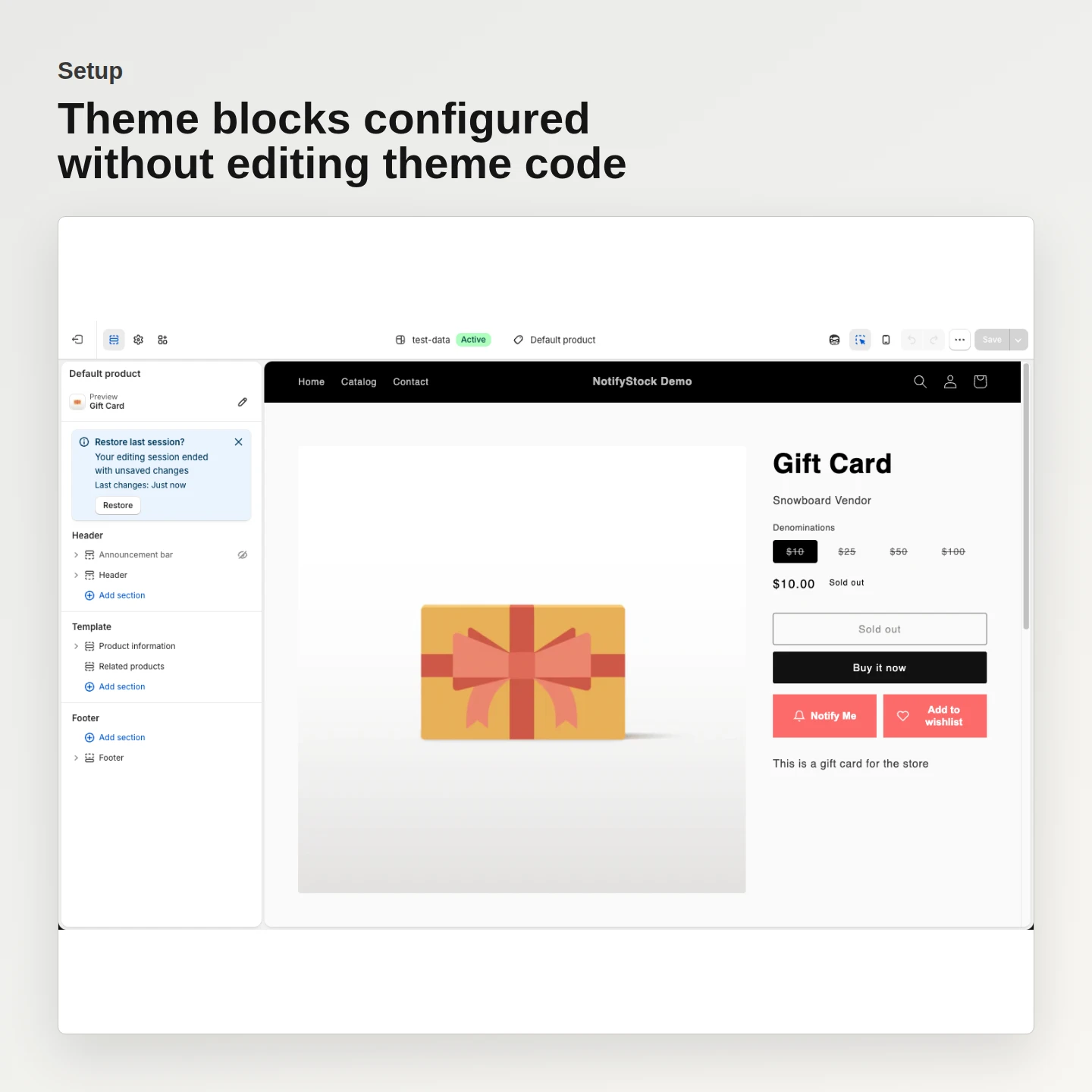
SHOPIFY THEME SETUP FOR SHOPIFY

Add the right NotifyStock block to the right storefront surface.

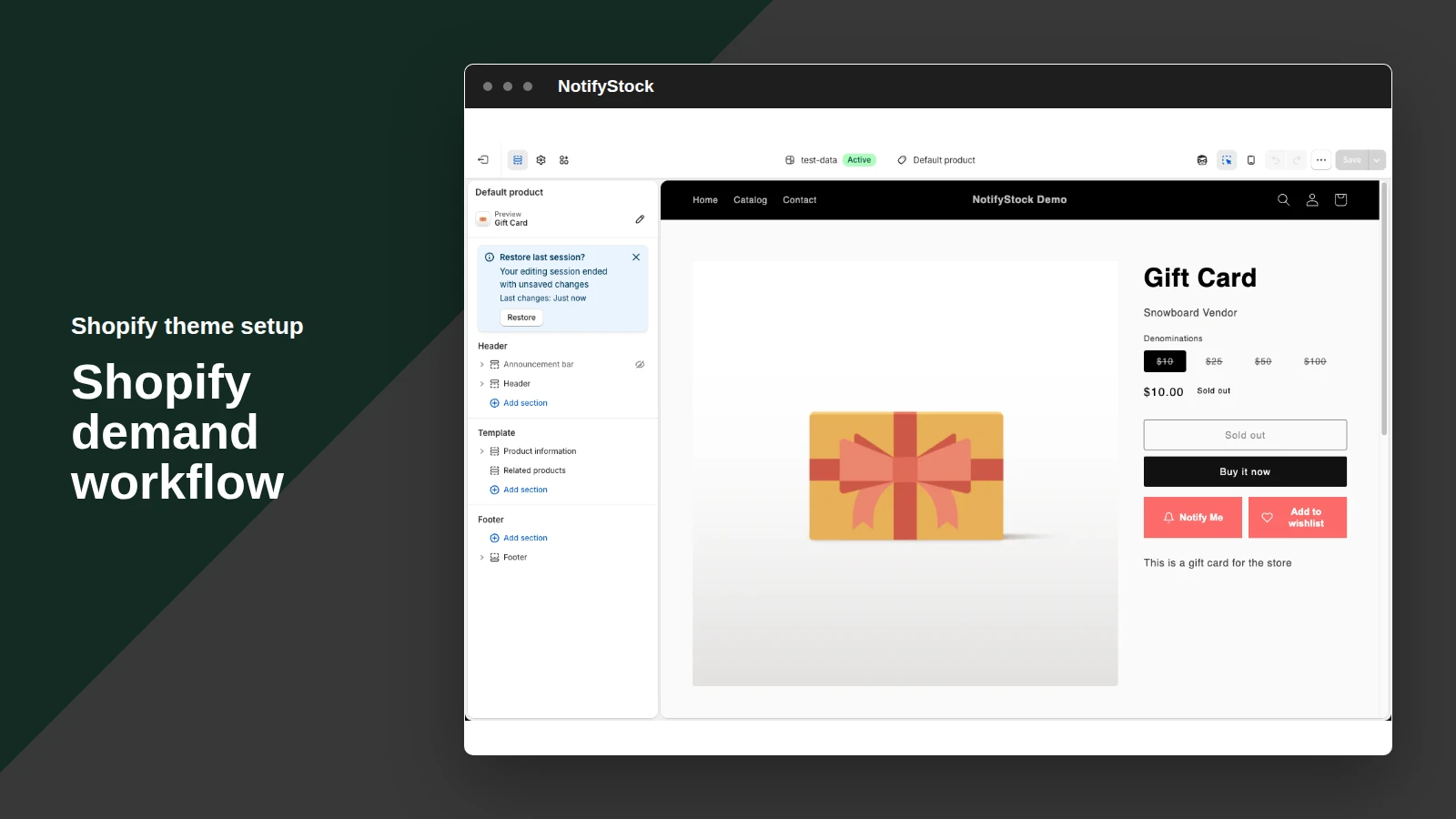
Use Shopify theme app extensions for Notify Me, PreOrder, Wishlist, and Low Stock, then preview every block before publishing.
Start free
Start free

50% off NotifyStock for 6 months. Limited time.

No manual
Theme-code edits
Four
Independent blocks
Theme Editor
Preview

Shopify theme setup, from storefront action to merchant follow-up.

See how Shopify theme setup moves from a clear storefront action to accurate product context and merchant follow-up.
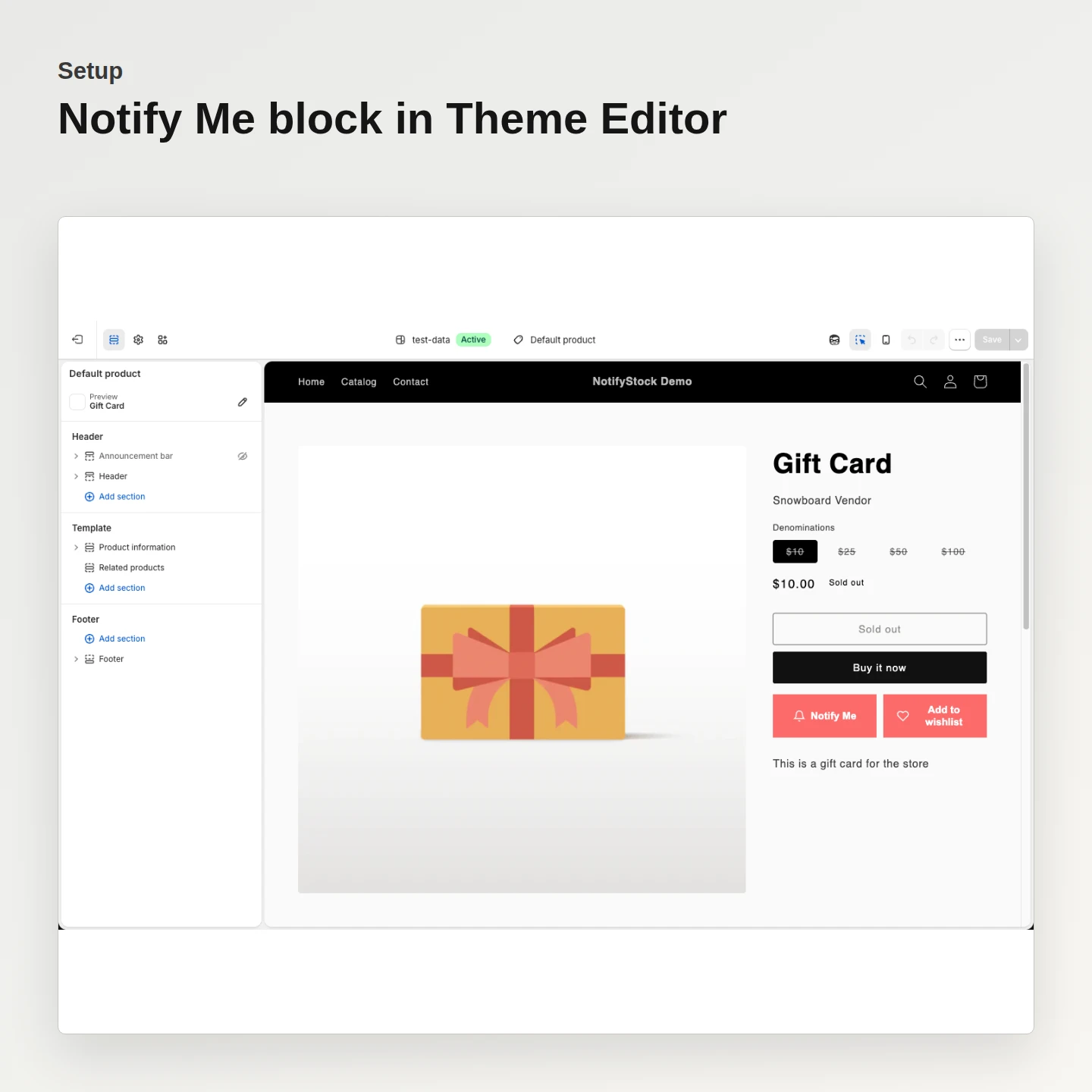
Shopify theme setup: Add Notify Me

Add Notify Me

Place the Notify Me block where sold-out shoppers need a next action.

Included:

  • Independent block
  • Sold-out product state
  • Request form
Start free
Live storefront demo
Shopify theme setup: Add PreOrder

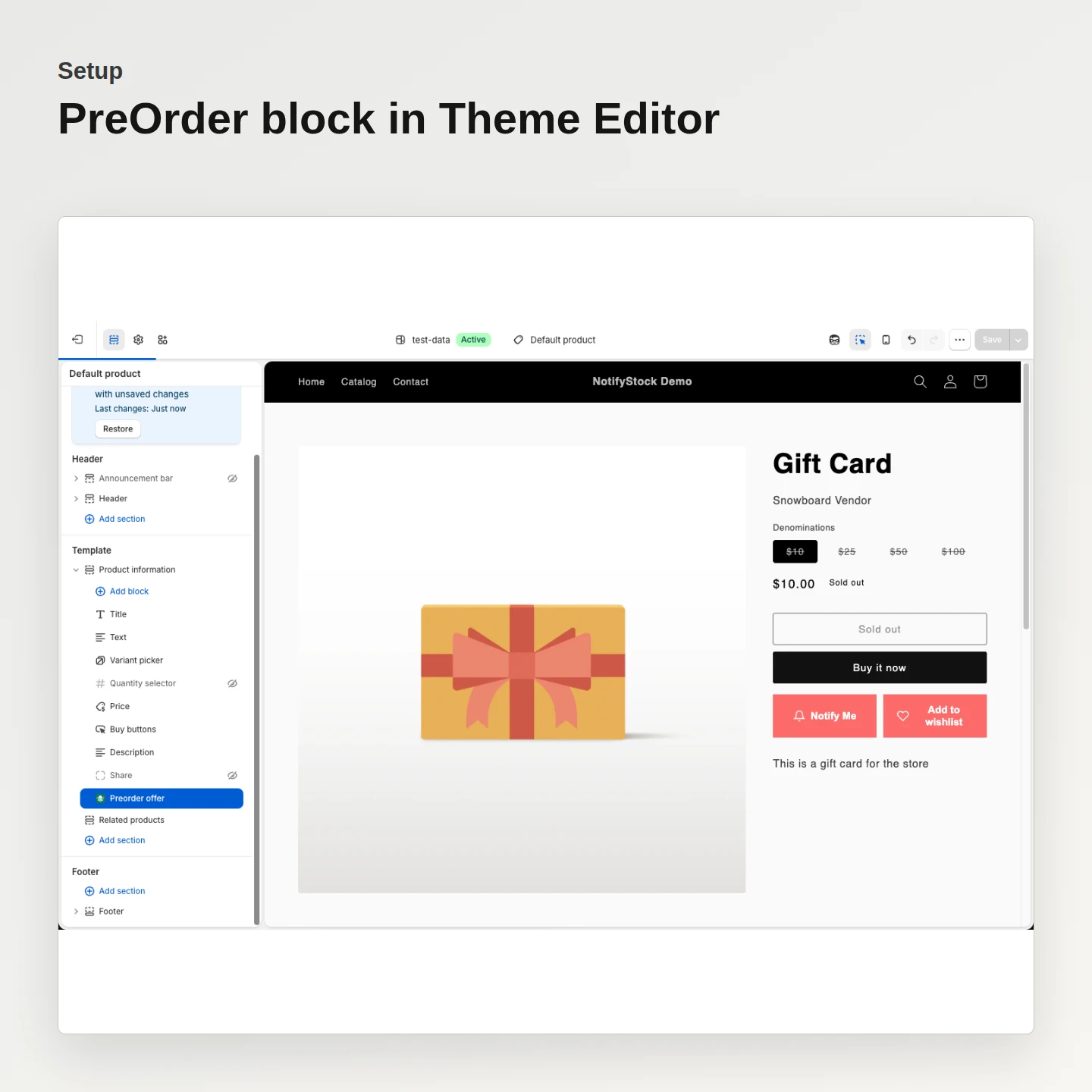
Add PreOrder

Place the PreOrder offer only for products configured to accept early interest.

Included:

  • Independent block
  • Product mode aware
  • Offer state
Start free
Live storefront demo
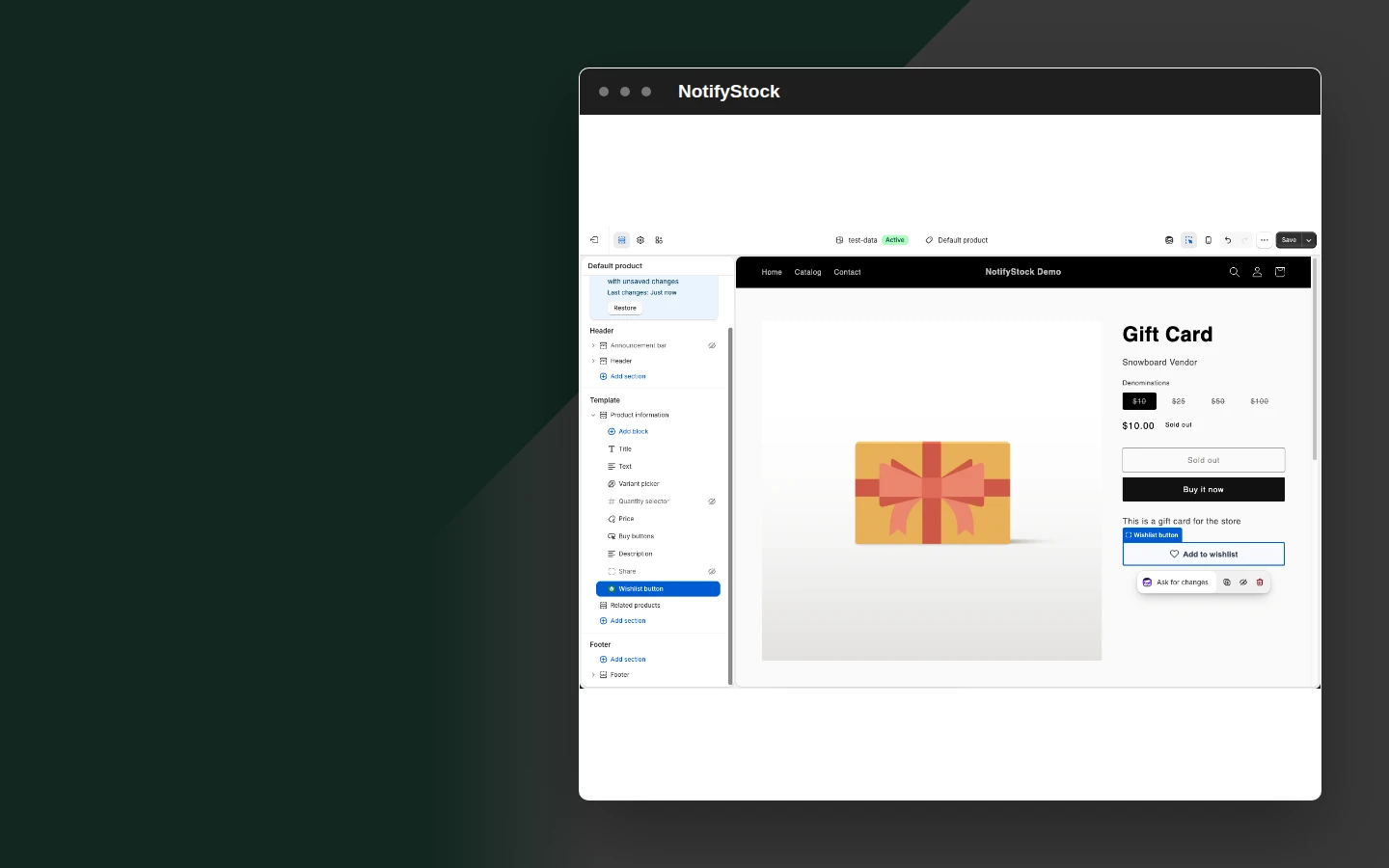
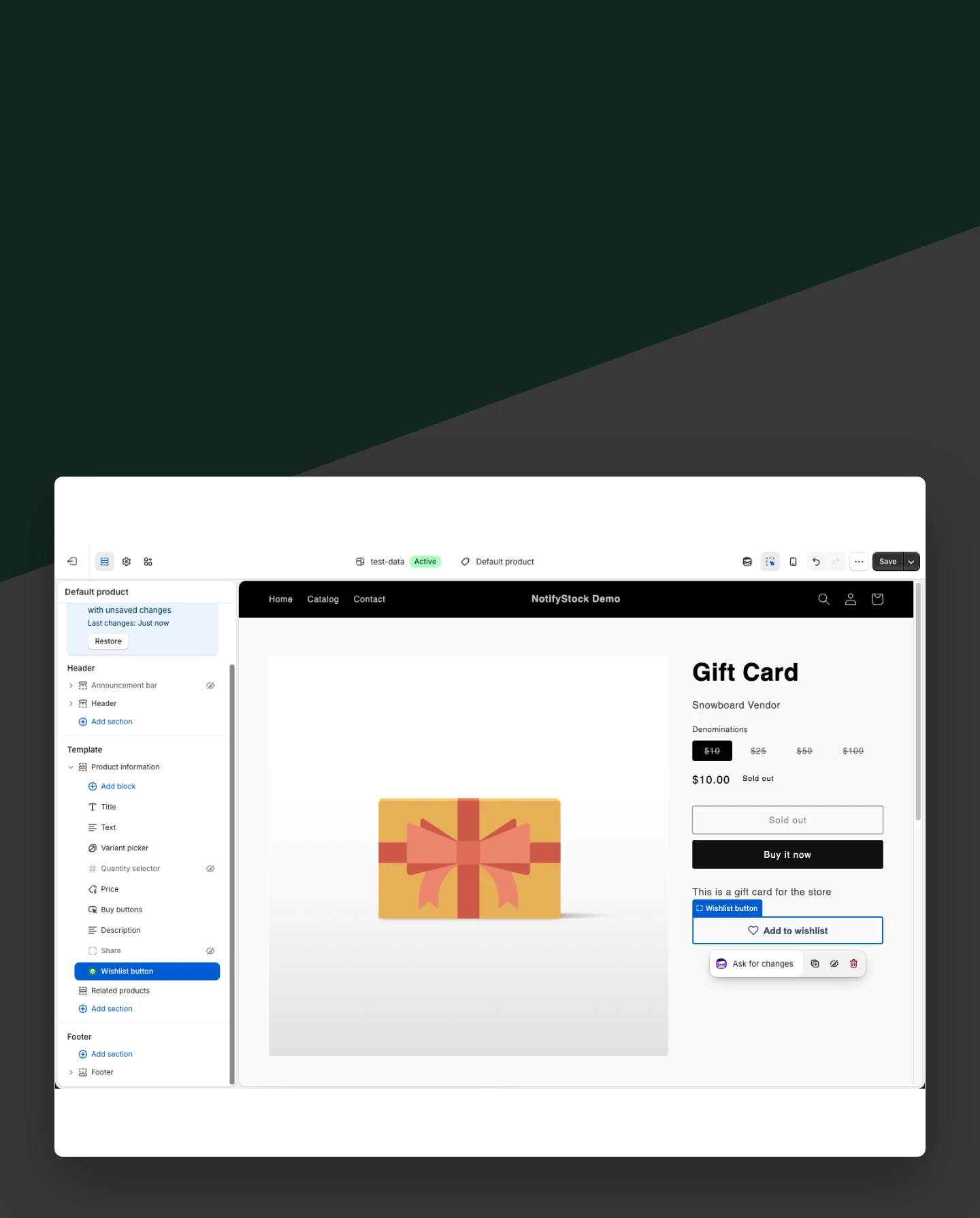
Shopify theme setup: Add Wishlist

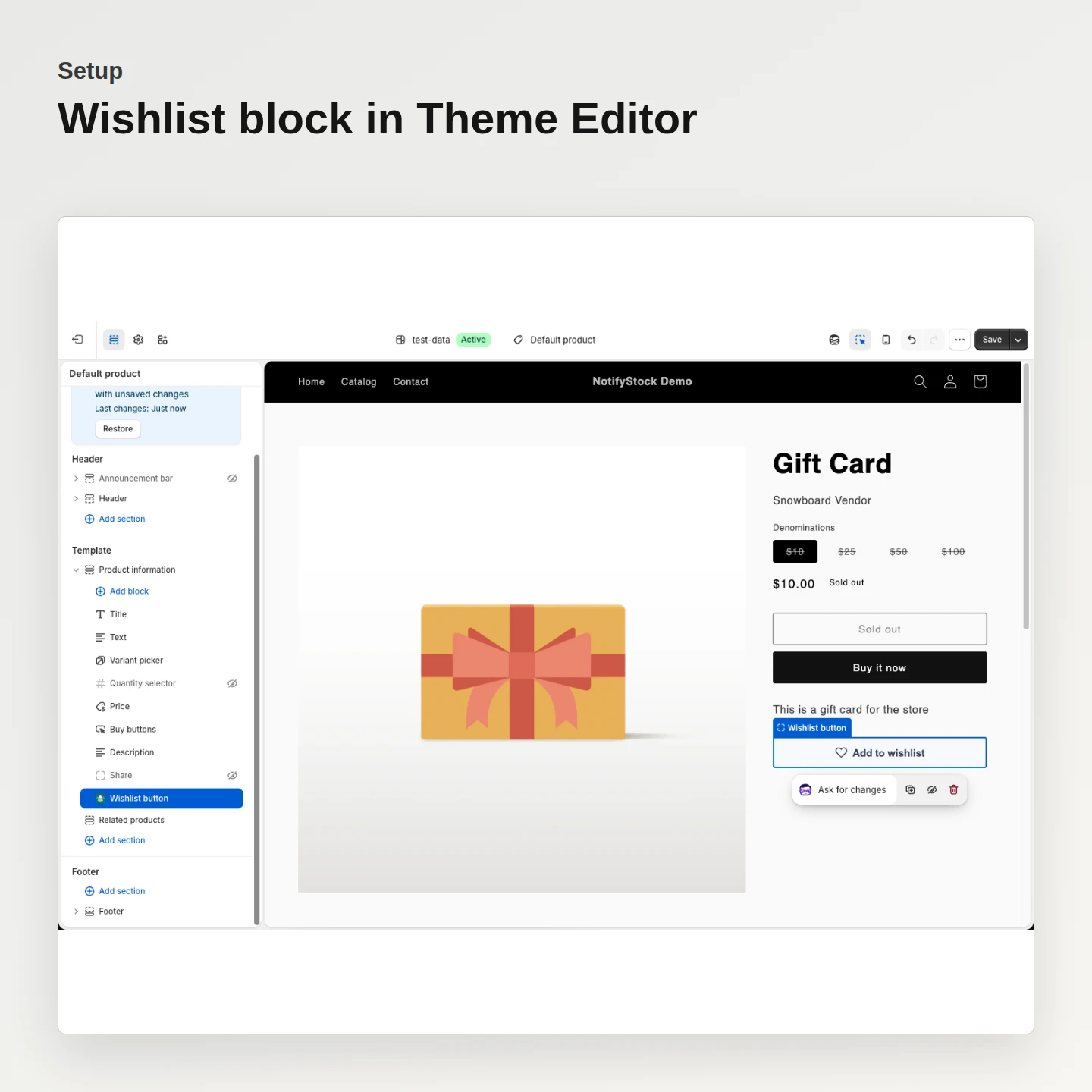
Add Wishlist

Add the save control without causing Notify Me or PreOrder to render automatically.

Included:

  • Independent block
  • Saved state
  • Product and collection support
Start free
Live storefront demo
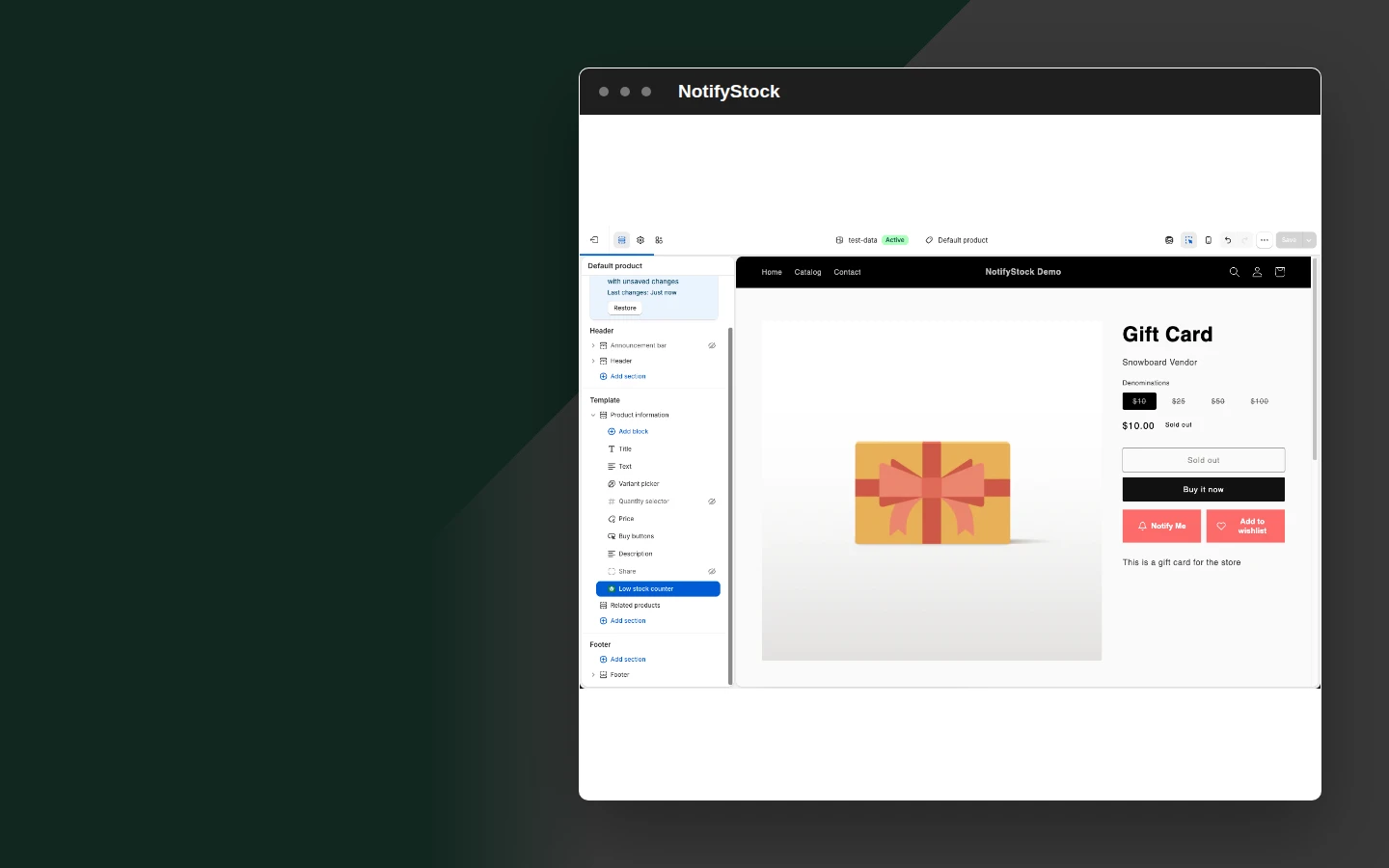
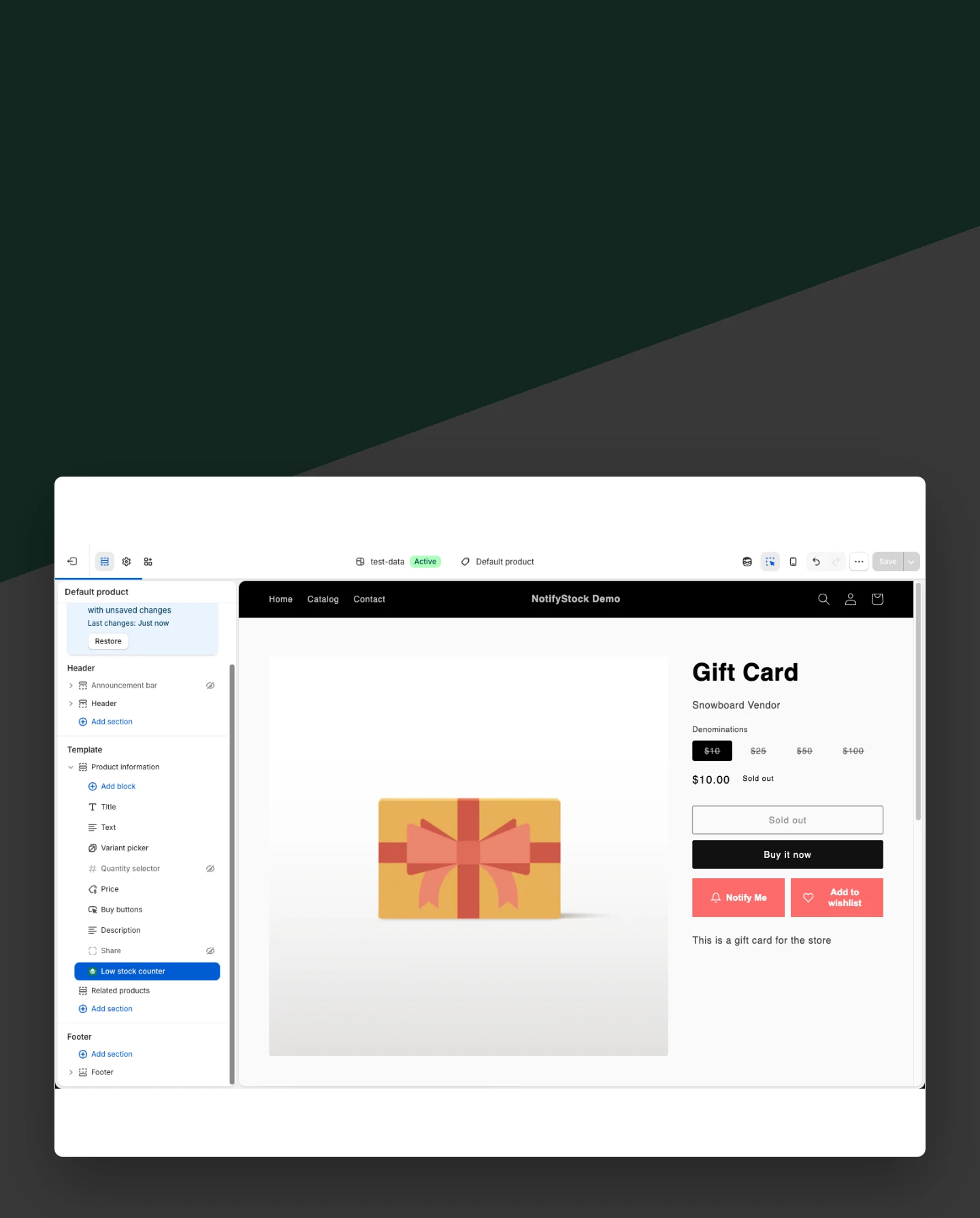
Shopify theme setup: Add Low Stock

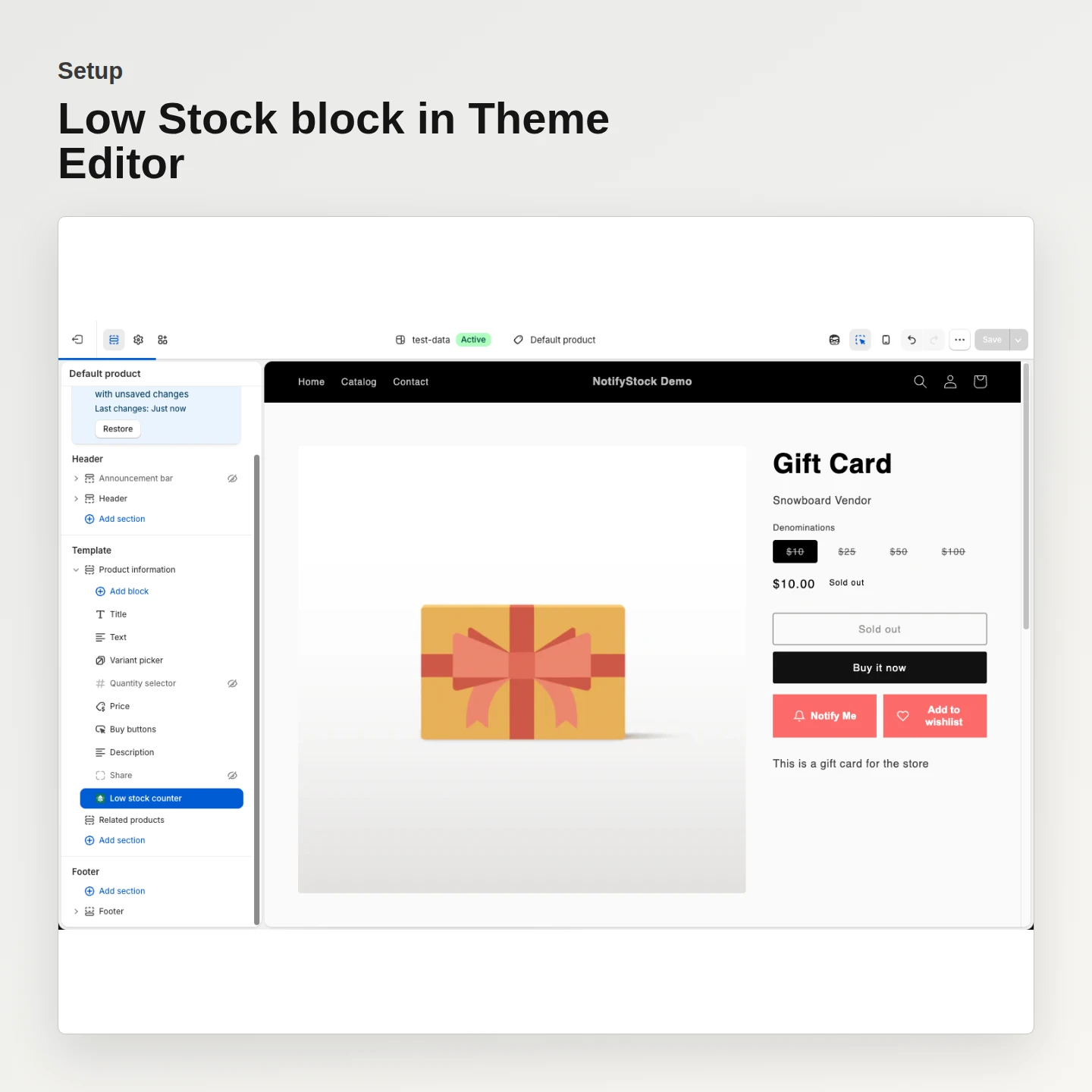
Add Low Stock

Show the stock counter when the configured threshold is met.

Included:

  • Independent block
  • Live inventory
  • Threshold aware
Start free
Live storefront demo

Why merchants use Shopify theme setup.

Each Shopify theme setup capability supports the same product-specific workflow without mixing unrelated shopper actions.

Avoid duplicate widgets

A single app embed loads shared behavior while blocks remain independent.

Preview before publish

Shopify Theme Editor shows the configured storefront result.

Keep themes removable

Theme app extensions avoid permanent manual theme-code changes.

Shopify theme setup in six practical views.
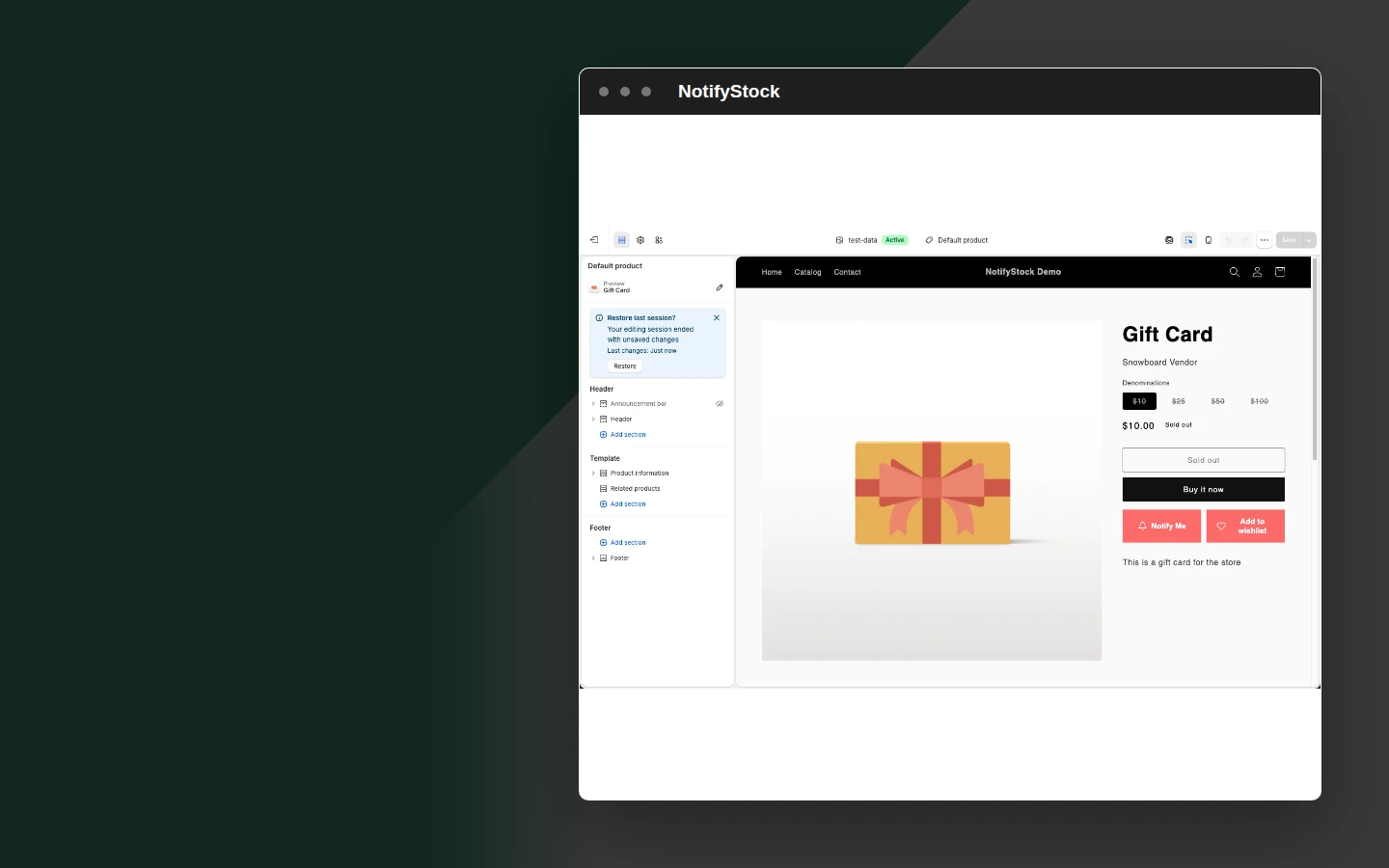
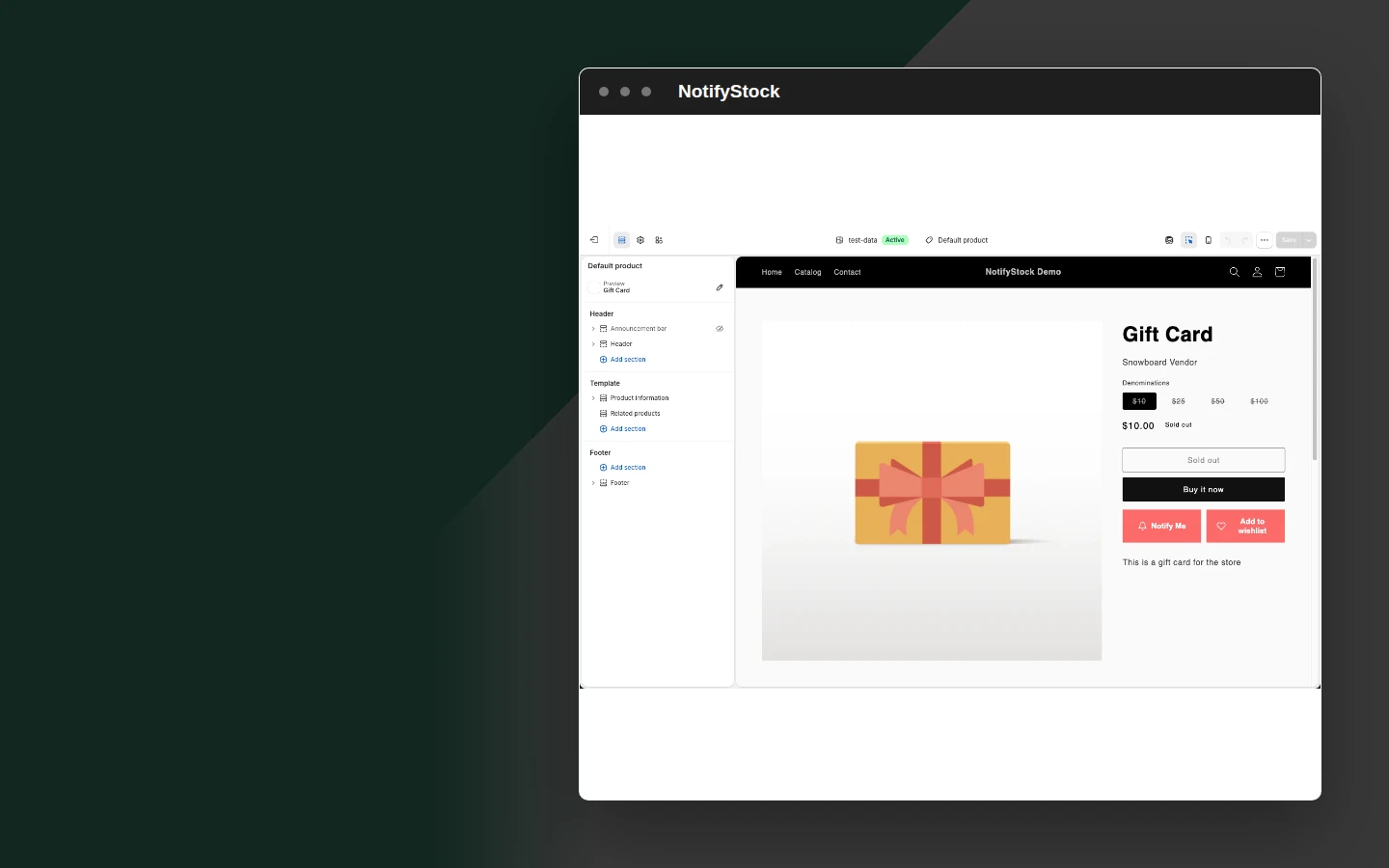
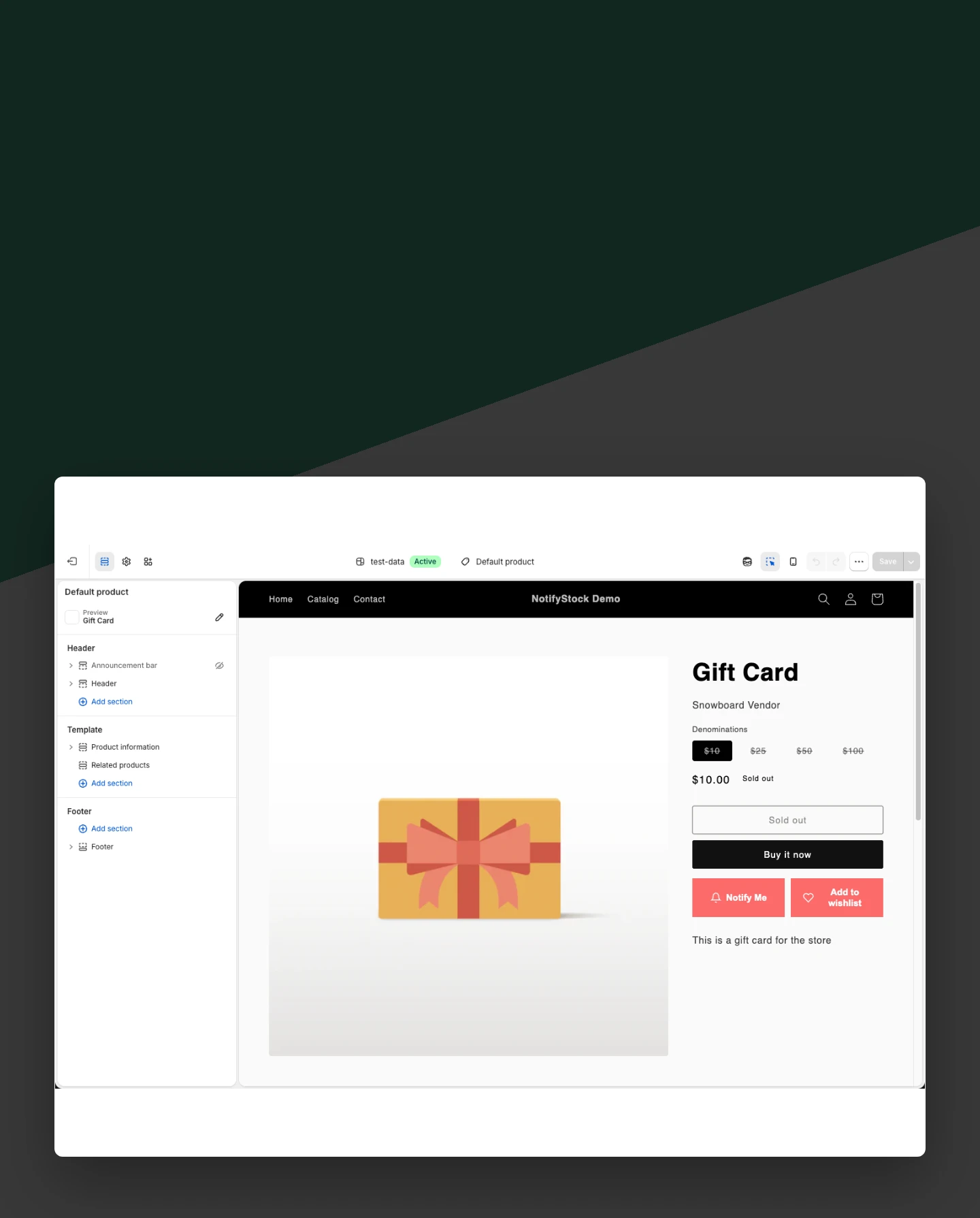
Theme Editor overview in NotifyStockTheme Editor overview mobile view

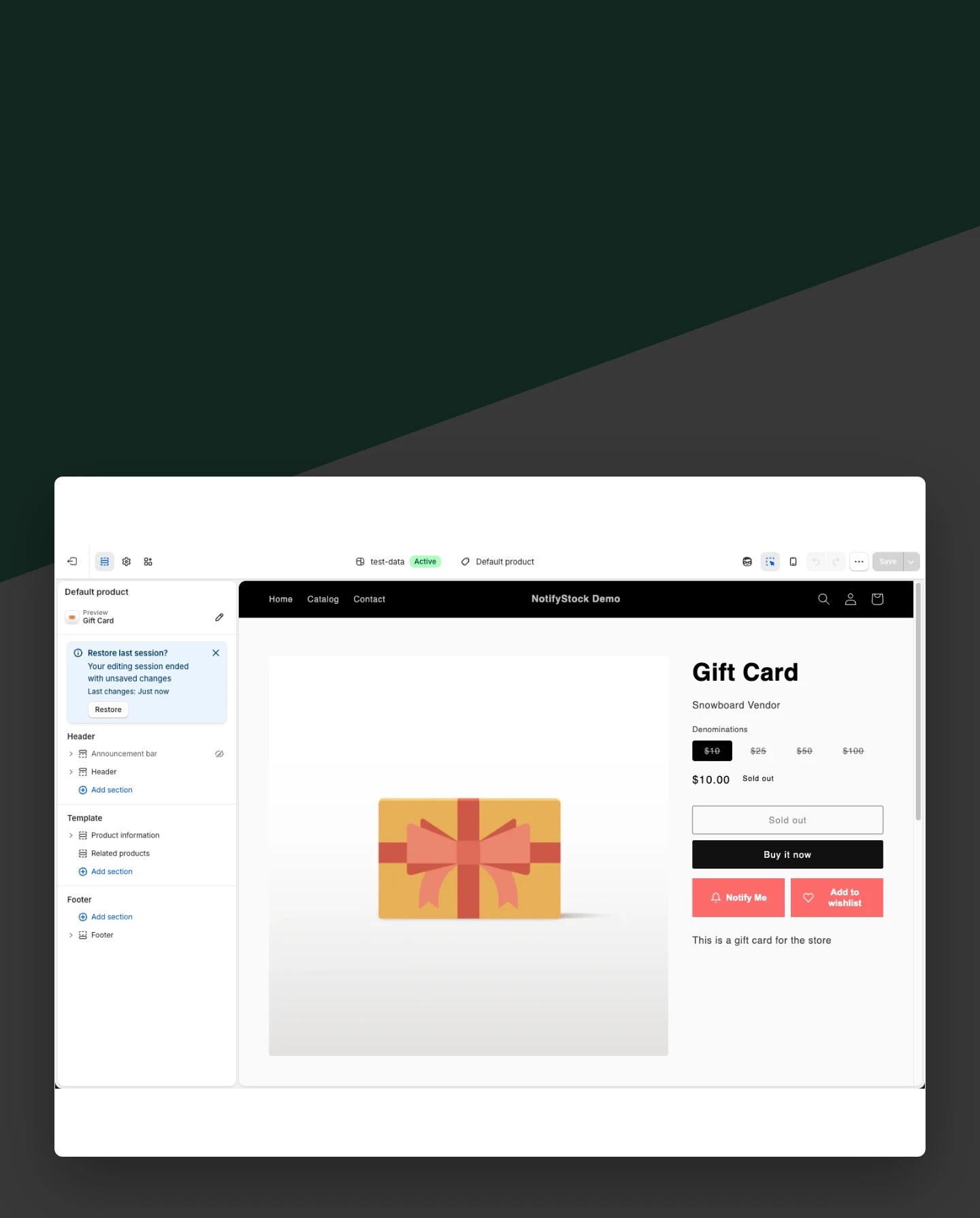
Theme Editor overview

  1. Enable the shared app embed once and place only the blocks the storefront needs.
Start free
Add Notify Me in NotifyStockAdd Notify Me mobile view

Add Notify Me

  1. Place the Notify Me block where sold-out shoppers need a next action.
Start free
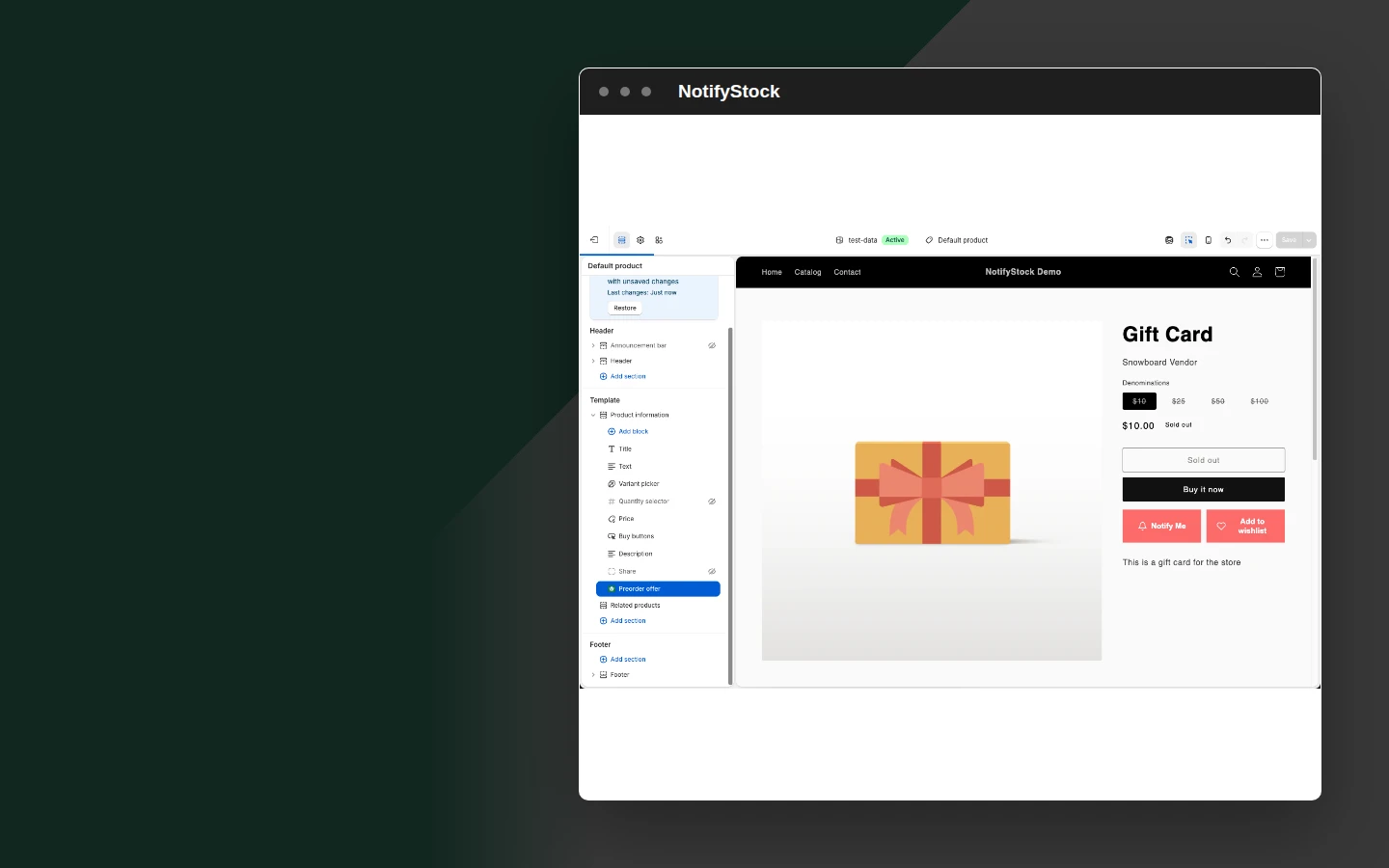
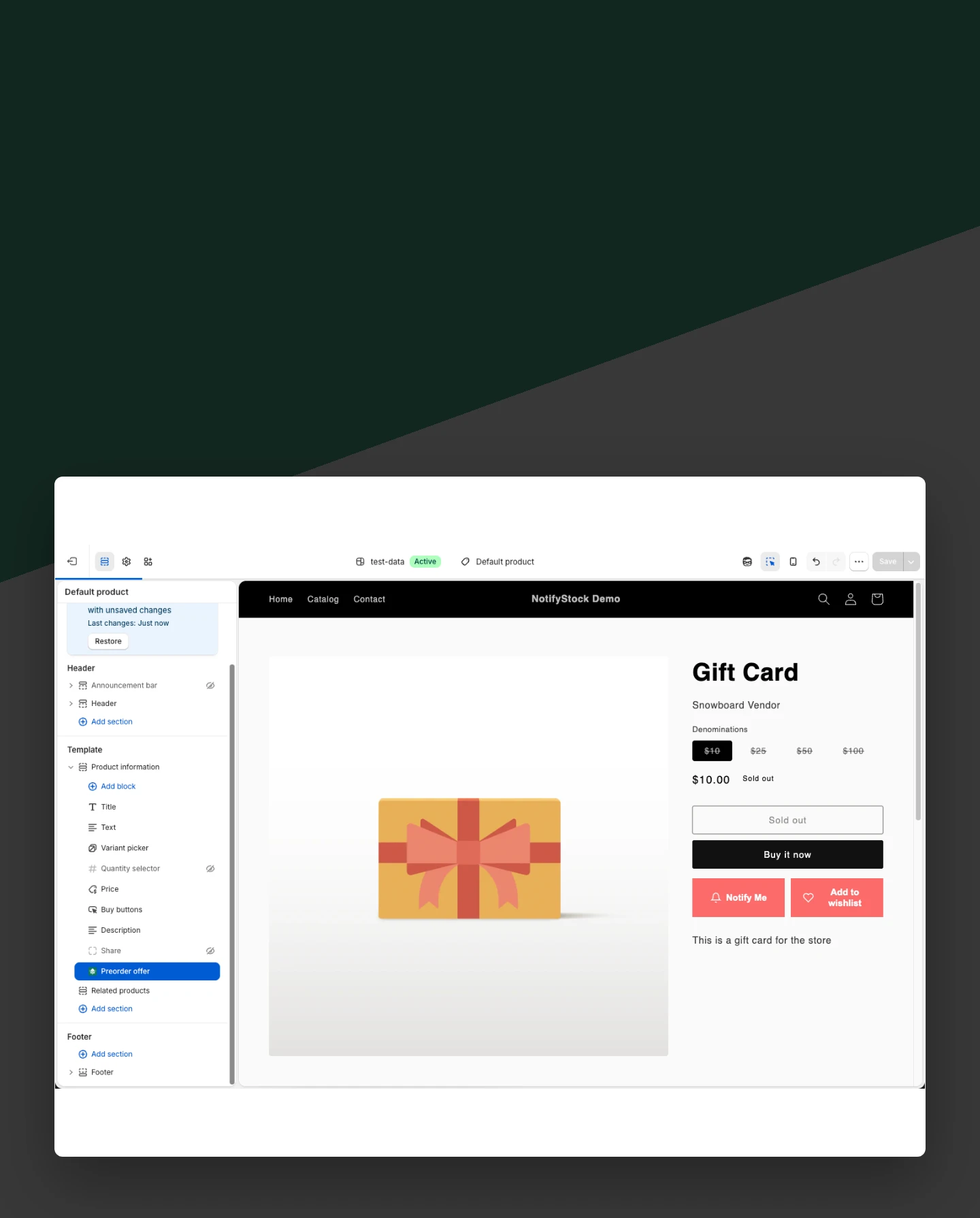
Add PreOrder in NotifyStockAdd PreOrder mobile view

Add PreOrder

  1. Place the PreOrder offer only for products configured to accept early interest.
Start free
Add Wishlist in NotifyStockAdd Wishlist mobile view

Add Wishlist

  1. Add the save control without causing Notify Me or PreOrder to render automatically.
Start free
Add Low Stock in NotifyStockAdd Low Stock mobile view

Add Low Stock

  1. Show the stock counter when the configured threshold is met.
Start free
Responsive storefront in NotifyStockResponsive storefront mobile view

Responsive storefront

  1. Verify the intended widget on desktop and mobile before publishing.
Start free

Shopify theme setup workflow, step by step.

Shopify theme setup workflow: Enable app embed

The shared NotifyStock loader is enabled once.

Enable app embed
Shopify theme setup
01
Workflow step
Shopify theme setup workflow: Add required blocks

Each workflow is placed independently in the appropriate template.

Add required blocks
Shopify theme setup
02
Workflow step
Shopify theme setup workflow: Verify storefront

The published store shows only the widgets intended for that product state.

Verify storefront
Shopify theme setup
03
Workflow step

Frequently asked questions

How is NotifyStock added to a Shopify theme?

Enable the NotifyStock app embed once, then add the required Notify Me, PreOrder, Wishlist, or Low Stock blocks in Theme Editor.

Should adding one block show every widget?

No. Each block is independent and should render only the selected workflow for the applicable product state.

Can merchants preview before publishing?

Yes. Shopify Theme Editor shows the configured block in the selected template before the theme is published.

Is manual Liquid editing required?

No. Theme app extensions provide removable blocks and shared assets without permanent manual theme-code changes.

What should be checked after setup?

Verify the app embed, product mode, block placement, desktop and mobile rendering, and the live storefront state.